Your first idea,
made visible.
You bring the intent. Your agent helps with the design.
A few thoughtful steps turn the conversation into something you can use.
Choose a starting point.
Open the studio and sign in. Write your idea on the homepage and choose Let’s create to save a project and begin its design interview. You can also start from a template when its structure suits your idea, or choose a blank project. Websites, slides, reports, wireframes, 3D scenes, and videos share the same editable workspace.
Templates and manual edits work on their own. Add your own AI-provider connection in Settings when you're ready to generate a design or media.
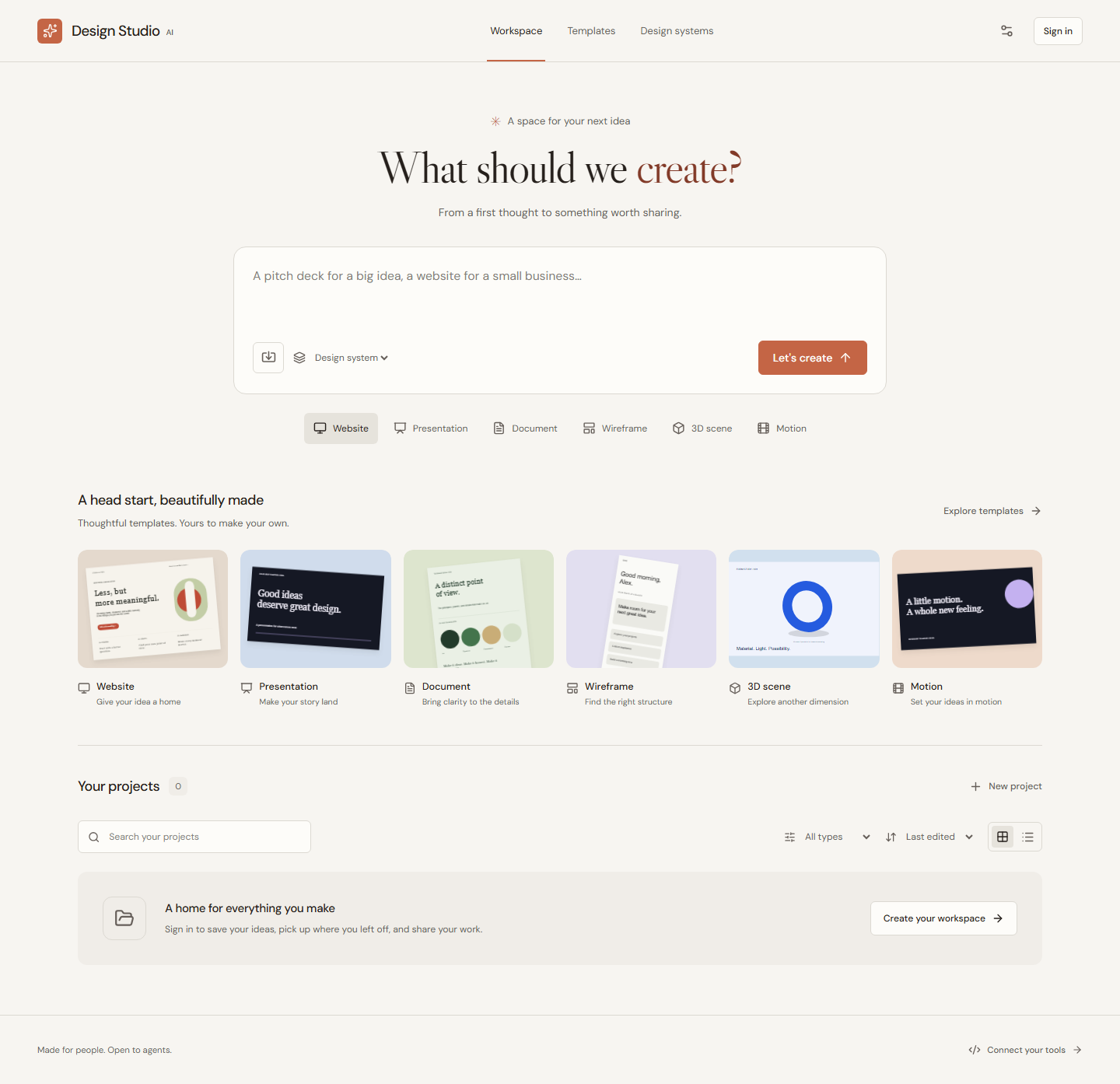
Describe the outcome,
not every pixel.
A useful brief explains who this is for, what they should understand or do, what content is real, and how the design should feel. Give the agent your constraints before asking it to fill the canvas.
Who is looking?
A first-time visitor, a customer, your team, or an investor?
What should happen?
Understand an idea, compare options, book a class, or take a next step?
What must stay true?
Your approved copy, actual data, brand, dimensions, deadline, and assets.
Create a calm, welcoming landing page for a neighborhood ceramics studio. Help beginners understand the classes and book their first workshop. Use warm ivory, clay accents, large readable type, and generous spacing. Include a short introduction, three class options, and a clear booking button. Start with a desktop layout, then check it at a smaller viewport.
If you're unsure, ask the agent to interview you first: “Ask me the few questions you need to clarify the audience, scope, content, and success criteria.” The studio saves your brief, questions, answers, and scope so you or a connected agent can continue later.
Agree on the scope.
Then make the first draft.
Choose Ask AI to start the interview with a configured text provider. Answer the contextual questions, choose Save answers, and Continue interview until the direction is clear. If you prefer another agent, choose Use your own agent; you can also Write scope manually.
Review Objective, Audience, Visual direction, Deliverables, Constraints, and Acceptance criteria. Use Save scope, then Approve scope. Editing the brief again requires fresh approval. The separate Generate design action creates and saves the first validated draft; it does not publish.
You can Open editor to work manually while the brief remains unapproved. Reload latest brief picks up changes from an external agent. Once a draft exists, use project chat for focused refinements, then review a proposal before applying and saving it.
Keep the layout. Make the headline shorter and give the introduction more breathing room.
Use the same type scale on every slide. Keep the approved product copy unchanged.
Before we add another section, tell me whether it helps the visitor book a class.
Ask for focused changes instead of starting over each time. Treat facts, figures, and product claims as your source material; ask the agent to request missing information rather than invent it.
Text, image, speech, music/effects, and video calls need compatible BYOK connections and may incur charges. Creating or editing media sends your selected source to that provider; it doesn't automatically publish the source.
Inspect it. Make it yours.
Select an object to refine its text, position, dimensions, color, or other supported properties. Use pages and layers to navigate a larger design, switch themes for a coherent starting palette, and save once the result feels right.
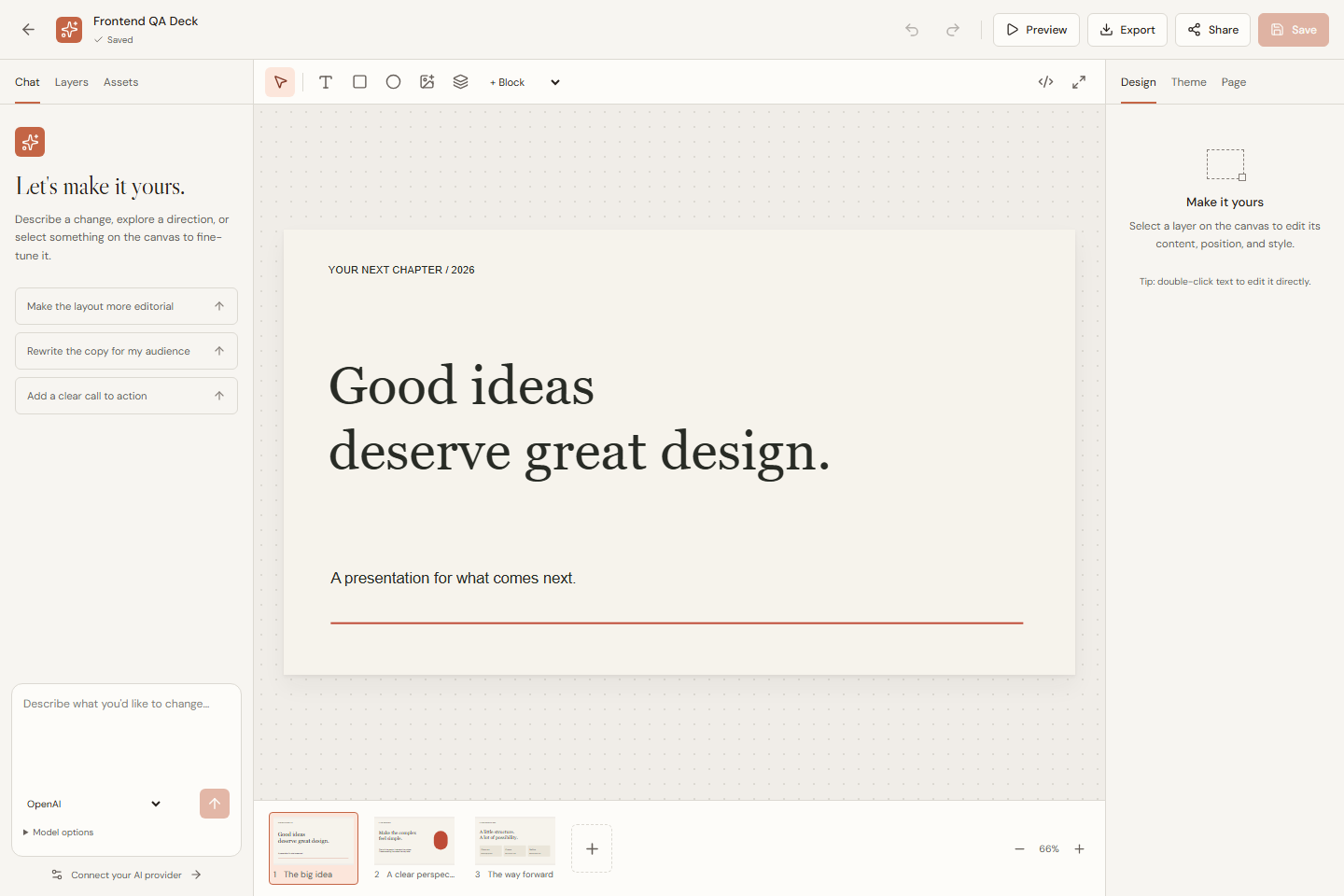
A quick quality pass
The design preflight can flag likely overflow, text fitting, estimated contrast, and missing media. Use these findings to guide inspection; automated checks do not certify accessibility or aesthetics.
Another person or agent may edit the same project. If saving reports a revision conflict, reload and reconcile the changes. Don't overwrite newer work blindly. In 3D, geometry/material/object rotation persist; orbit-camera changes are temporary preview state.
Export the file.
Share the right version.
Choose an output for the person who will use it. Open the exported file and check its contents. Save before exporting or publishing so you're delivering the revision you inspected.
For a visual
PNG for a rendered page. SVG for supported static vector structure.
For a document
PDF for pages. PowerPoint for editable text/shapes with complex content rasterized.
For the web
HTML for a standalone design, including the trusted 3D/timeline viewer where supported.
For motion
Character rigging, clips, skins and native motion packages
WebM for recorded timeline output. MP4 when the runtime has a supported encoder.
Publishing makes a public snapshot.
It includes referenced snapshot assets. Later private edits don't change that link. Use Unpublish to remove the project's public snapshots.
Cloud binary export needs imported project assets for remote media and enforces size limits. Motion is limited to 60 seconds. Cloud recordings mix imported audio/video; browser fallback is silent. Google Slides needs Google authorization and supports native text/shapes/HTTPS images, with explicit errors for unsupported content.
The same design,
from another tool.
Use the studio directly, or connect the agent you already work with. Your agent reads the same project, makes targeted edits, and saves with the same revision protection.
Share something useful.
Publish a reviewed design to Community, explore by category, or download a design package to make your own. Your private work stays private until you confirm the public version and license. Learn about publishing and remixing.
Before you begin.
Do I need to know how to code?
No. You can create from a template, describe changes in chat, and use the manual editor. The CLI and APIs are available when you want to connect another agent or automate a workflow.
Is an AI-provider key included?
No. You bring your own provider credentials and model access. Template selection and manual editing work without a provider. Generation calls use your account and may incur charges.
Will the agent automatically publish my work?
Generating a proposal, saving a project, and publishing a public snapshot are separate operations. Tell your agent what sharing is authorized, and inspect the saved version before publication.
Can I edit a generated image or video?
Compatible OpenAI/fal modes accept a source asset owned by the project. Image, video, and audio transformations have provider-specific requirements. Check the provider guide before choosing a model or source.
Why does an exported file look different?
Different formats preserve different structures. SVG is static, PowerPoint rasterizes complex nodes, and Google Slides supports a smaller set of native elements. Always inspect the actual file; export support does not mean full editable parity.
Start with one clear idea.
You can refine the details together.
Open Design Studio Or explore the documentation